Windows Data Deduplication
Show Article Outline
How Data Deduplication Work
Before we learn how Windows Data Deduplication works, we first need to understand the problem it was designed to solve.
Modern organizations store enormous amounts of data. File servers, virtual machines, backups, databases, and user documents can easily consume terabytes or even petabytes of storage.
One common problem is that much of this data is duplicated.
Imagine a company that stores the following files:
File A
Windows_Server_Backup.vhdx
File B
Windows_Server_Backup_Copy.vhdx
File C
Windows_Server_Backup_2026.vhdx
In a traditional file system, each file is stored independently, even if most or all of its content is identical to another file. This results in multiple copies of the same data being written to disk, wasting valuable storage space.
Data Deduplication takes a different approach. Instead of storing each file as a complete, independent copy, it breaks file data into smaller pieces called
chunks
. Each chunk is analyzed, and only unique chunks are stored in a shared storage area known as the
Chunk Store
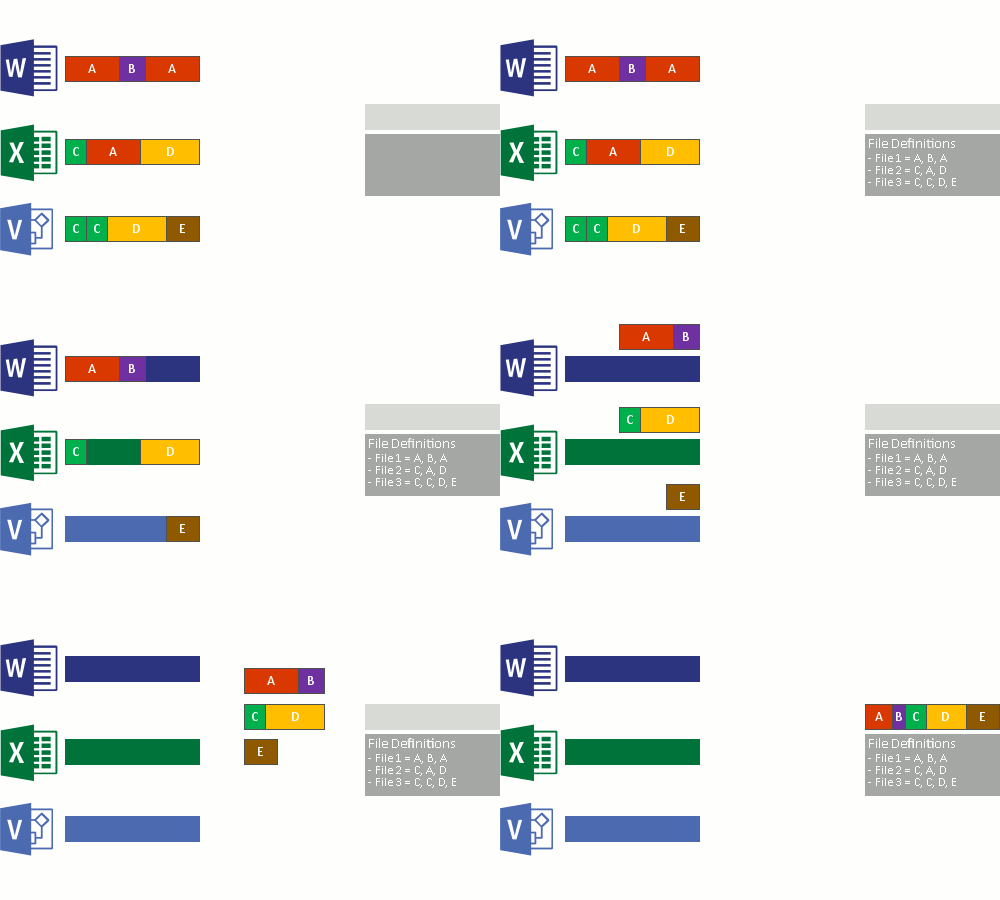
. If another file contains a chunk that has already been stored, Windows simply creates a reference to the existing chunk instead of writing a duplicate copy.
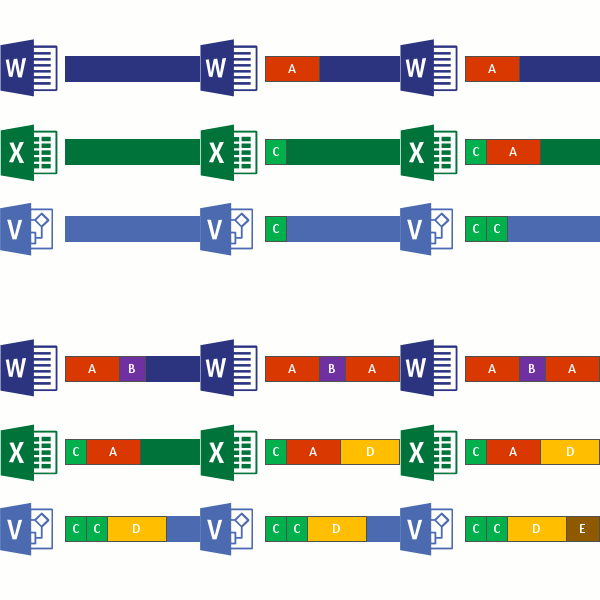
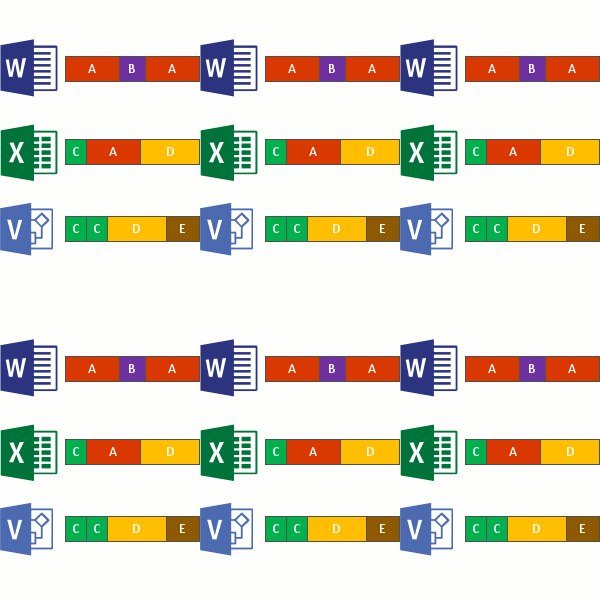
This occurs in the following four steps:
-
Scan the file system for files meeting the optimization policy.

-
Break files into variable-size chunks.
-
Identify unique chunks.
-
Place chunks in the chunk store and optionally compress.
Where exactly do you cut?
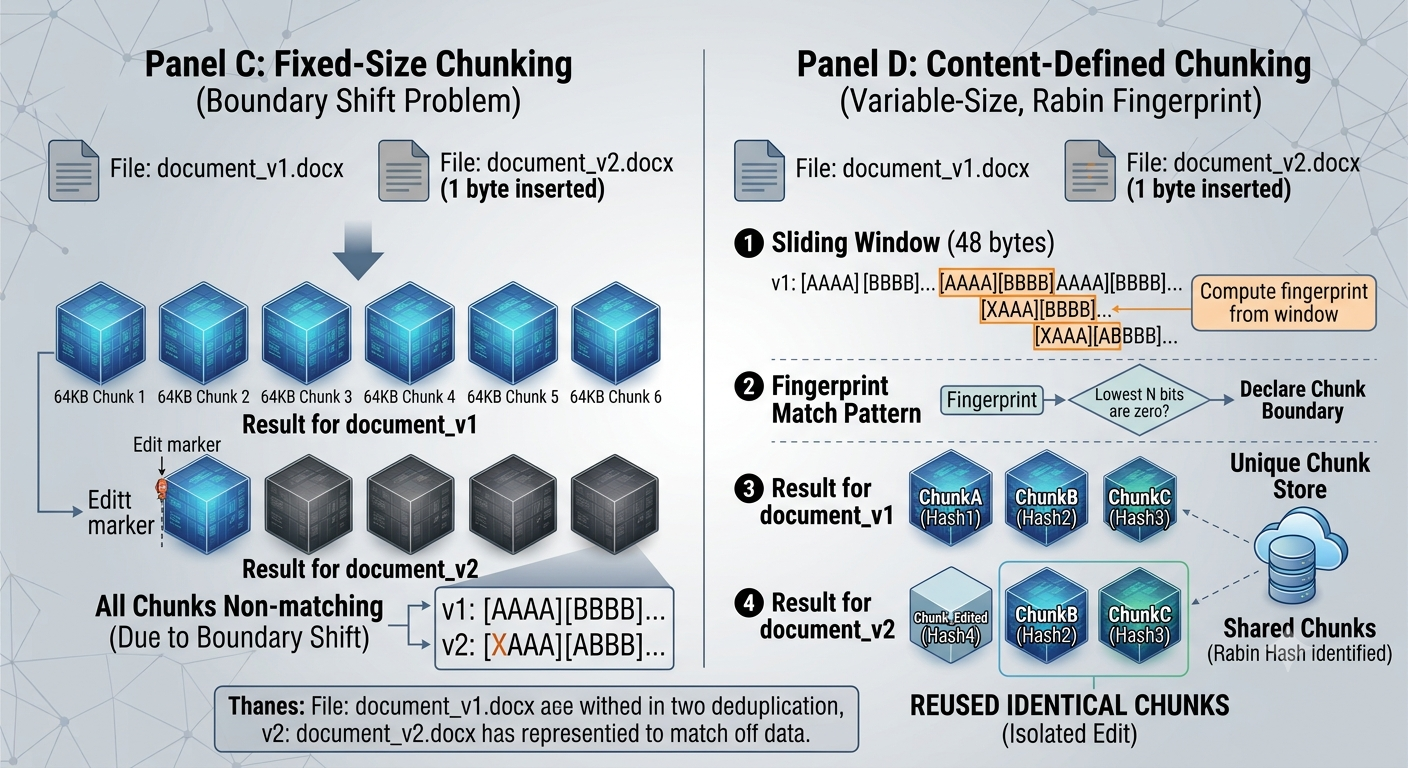
Attempt 1: Fixed-size chunking
The simplest idea: cut every file into blocks of exactly, say, 64 KB.
Simple to implement. Fast to compute. But it has a fatal weakness, and it’s the single most important concept in this entire chapter, so slow down and read this carefully.
Imagine document_v1.docx and document_v2.docxare identical except someone typed one extra sentence at the very beginning.
Because fixed-size chunking cuts at rigid byte offsets (0, 64K, 128K, 192K…), inserting even a single byte at the beginning shifts every single chunk boundary that comes after it. The result:
document_v2shares zero chunks with document_v1, even though 99.9% of the actual content is identical. This is called the boundary-shift problem , and it’s the reason fixed-size chunking, while simple, performs poorly on real-world edited documents (contracts, source code, logs — anything that gets incrementally modified).
Attempt 2: Content-defined chunking (variable-size)
What if, instead of cutting at fixed byte positions, we cut at positions determined by the content itself ?
Then inserting a byte at the start would only affect the one chunk containing that insertion — every chunk after it stays byte-identical and gets recognized as a duplicate.
This is done using a rolling hash — most famously, the Rabin fingerprint algorithm (Rabin, 1981), which Windows’ post-process engine and many other dedup systems rely on conceptually.
For more details about Rabin fingerprint
https://moinakg.wordpress.com/tag/rabin-fingerprint/
Here’s the intuition, no math required yet:
- Slide a fixed-size “window” (say, 48 bytes) across the file, byte by byte.
- At every position, compute a fingerprint value from the bytes currently inside the window.
- Whenever that fingerprint matches a specific pattern (e.g., its lowest N bits are all zero), declare “chunk boundary here.”
Because the fingerprint depends only on the local bytes under the window, a change far away doesn’t affect it. Insert a byte at the start of the file, and the cut points simply shift along with the insertion — everything after the edit still produces the exact same chunks as before.
This is why content-defined chunking is the standard for real-world dedup: it isolates edits to a small local region and keeps everything else deduplicable.
Windows Deduplication Storage Architecture
The four core components of Windows Data Deduplication are:
- REPARSE_POINT – The starting point. It marks the file as deduplicated and provides the metadata required to locate its associated stream.
- Stream File – The reconstruction blueprint. It contains the ordered list of chunk references that describes how the original file can be rebuilt.
- Chunk Lookup (Ckhr)
- Chunk Store (Container Files) – The physical storage location for the actual data. It stores unique chunks inside container (
.ccc) files, allowing multiple files to share identical data without duplication.
1-REPARSE_POINT
This is not an introduction to NTFS. Instead, the following sections provide only the concepts necessary to understand how Windows stores and reconstructs deduplicated files.
If you are already familiar with NTFS, you can safely skip this section.
For readers who would like a deeper understanding of NTFS internals, I highly recommend the following references:
- https://internals-for-interns.com/posts/ntfs-filesystem/
- https://a1l4m.github.io/research/posts/MFT/index.html
- https://thrwt.ninja/NOTES/MFT.html
Throughout this research, we only need to understand one NTFS attributes: REPARSE_POINT.
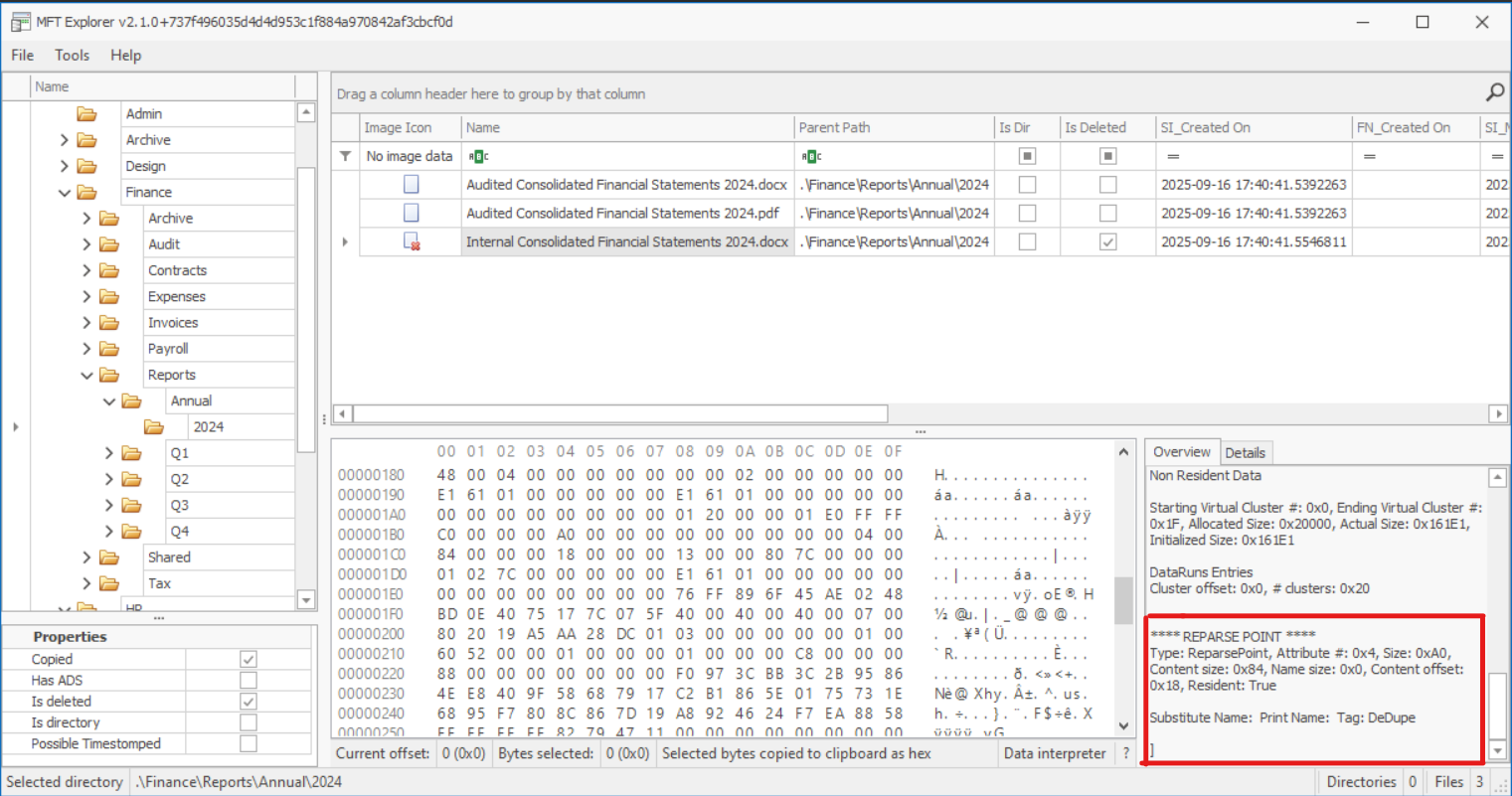
When a file is optimized by Windows Data Deduplication, Windows adds a REPARSE_POINT attribute to its MFT entry. This attribute indicates that the file is no longer stored as a traditional NTFS file and must be processed by the Deduplication filter driver.
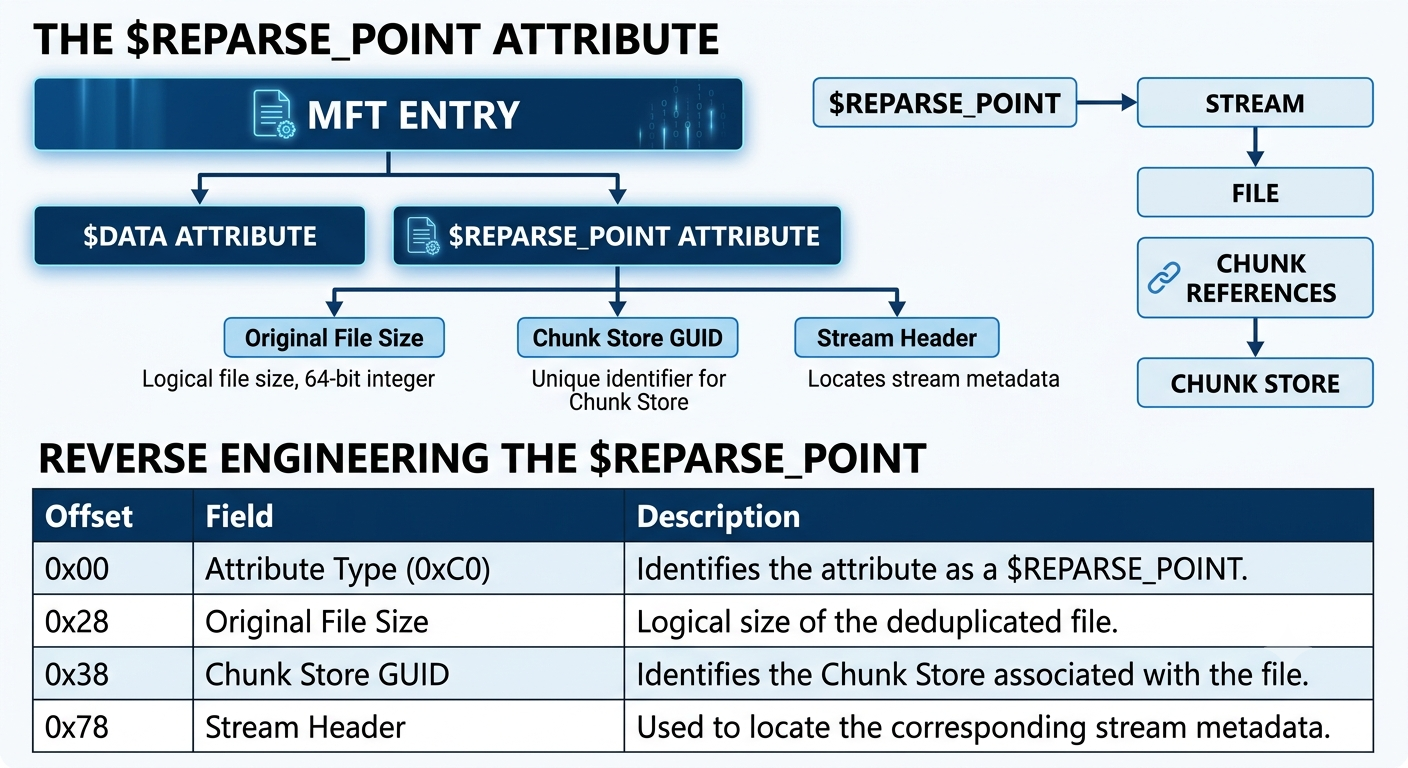
The reparse point contains several pieces of metadata that are essential for locating the deduplicated data.
Among the most important fields are:
- Original File Size – The logical size of the file before deduplication. This is the size that applications see when accessing the file.
- Chunk Store Identifier (GUID) – A unique identifier that specifies which Chunk Store contains the file’s deduplicated data.
- Stream Header – A unique identifier used to locate the corresponding stream metadata. The stream metadata describes how the original file can be reconstructed by referencing chunks stored in the Chunk Store.
The REPARSE_POINT attribute does not contain the actual file data. Instead, it provides the information required for Windows to locate the stream metadata, which ultimately leads to the chunks needed to reconstruct the original file.
2- The Stream File
The REPARSE_POINT does not directly point to the data stored in the Chunk Store. Instead, it contains a Stream Header, which uniquely identifies the corresponding Stream File.
The Stream File acts as the blueprint for reconstructing the original file. Rather than storing the file’s contents, it contains a Stream Map—an ordered list of chunk references that describes exactly which chunks must be retrieved and in what order.
When Windows opens a deduplicated file, it performs the following steps:
- Read the Stream Header from the
$REPARSE_POINT. - Locate the corresponding Stream File.
- Parse the Stream Map contained within the Stream File.
- Retrieve each referenced chunk from the Chunk Store.
- Reassemble the chunks to reconstruct the original file.
The Stream File acts as a blueprint for reconstructing the original file. It contains a Stream Map that defines the ordered sequence of chunks required to rebuild the file from the Chunk Store.
3 - Chunk Lookup (Ckhr)
The Stream File tells Windows which chunks are required to reconstruct a file, but it does not specify where those chunks are physically stored.
To locate the actual chunk data, Windows uses a Chunk Lookup (Ckhr) structure. The Ckhr acts as an index that maps each chunk reference to its physical location within the Chunk Store.
Using this lookup information, Windows can determine:
- Which container (
.ccc) file contains the required chunk. - The offset of the chunk within the container.
- The size of the stored chunk.
Without the Ckhr, Windows would have to search every container file to find each required chunk, making reconstruction extremely inefficient.
In other words, the Stream File describes what chunks are needed, while the Ckhr describes where those chunks are stored. Together, they provide all the information required to retrieve the data from the Chunk Store and reconstruct the original file.
4 - Chunk Store (Container Files)
The Chunk Store is where Windows stores the actual data of deduplicated files. Unlike traditional file systems that store complete files, the Chunk Store stores only unique chunks, allowing identical data to be shared among multiple files.
All chunk data is stored under the following directory:
System Volume Information
└── Dedup
    └── ChunkStore
        └── {Chunk Store GUID}.ddp
            ├── Data <---
            ├── Stream
            ├── Hotspot
            └── stamp.dat
The Data directory contains the container (.ccc) files that hold the physical chunk data.
Data
├── 00000001.00000001.ccc
├── 00000002.00000001.ccc
├── 00000003.00000001.ccc
└── ...
Instead of creating one file for every chunk, Windows packs many chunks into a single container file. This significantly reduces NTFS metadata overhead and improves storage efficiency.
Conceptually, a container file can be viewed as follows:
Container (.ccc)

+-------------------------+
| Chunk #1                |
+-------------------------+
| Chunk #2                |
+-------------------------+
| Chunk #3                |
+-------------------------+
| Chunk #4                |
+-------------------------+
| ...                     |
+-------------------------+
Each chunk stored inside a container has its own metadata, including information such as its location, size, and compression state. During reconstruction, Windows uses the chunk references obtained from the Stream File together with the lookup metadata to locate the required chunk inside the appropriate container.
At this point, we have identified all of the core components involved in Windows Data Deduplication. The next step is to reverse engineer the container format itself and understand how individual chunks are stored inside a .ccc file.
Practical Analysis
Now, let’s examine a real-world case and apply what we’ve learned.
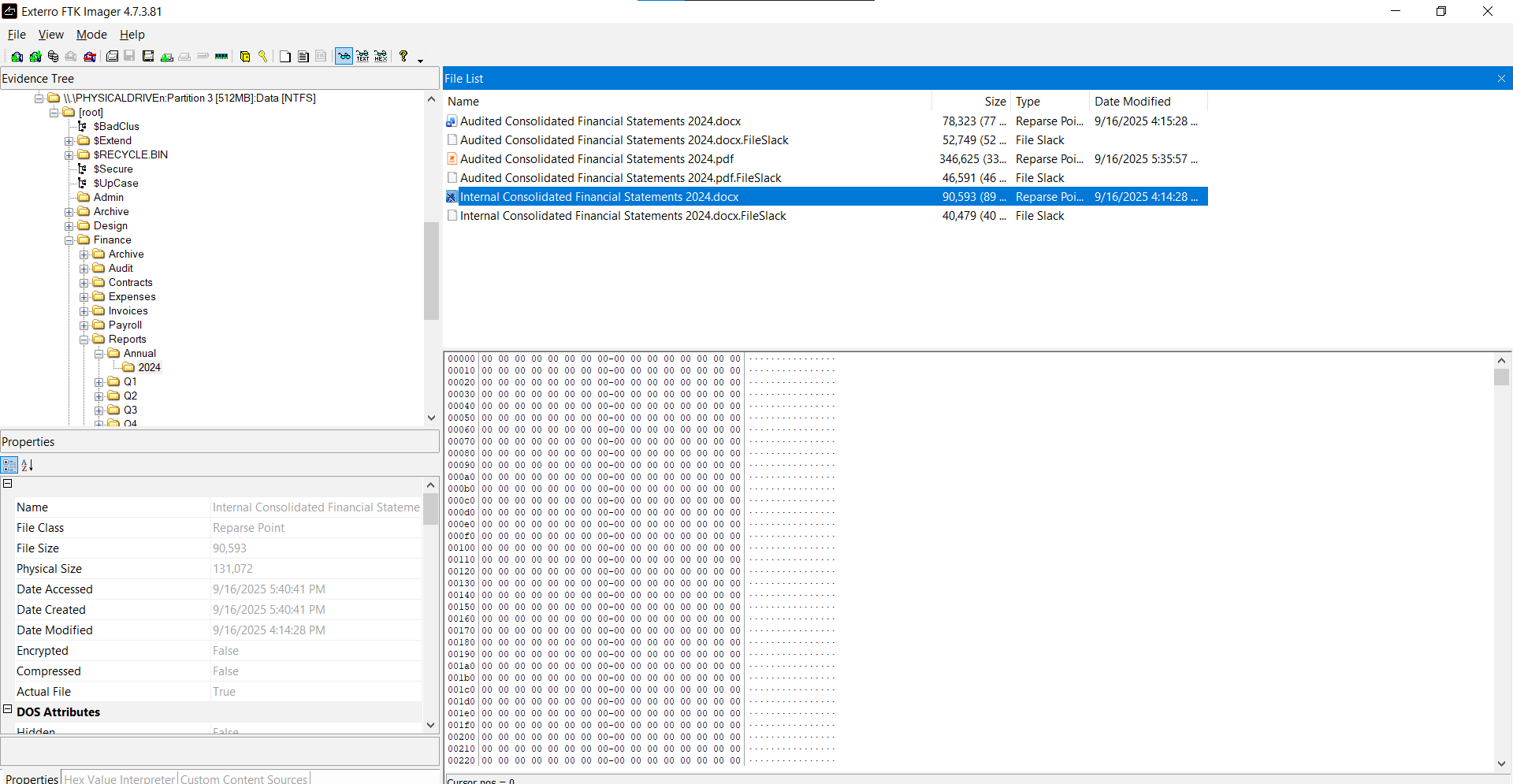
The first indication that Data Deduplication is enabled appears when examining the file in FTK Imager. Although the file still exists and its original size is preserved, the data area is filled entirely with 0x00 bytes instead of the expected file content.
Next, we’ll inspect the file’s MFT entry using MFT Explorer to identify the NTFS attributes associated with the deduplicated file.
Now, let’s reverse engineer the $REPARSE_POINT to understand its structure and identify the metadata Windows uses to locate the deduplicated data.
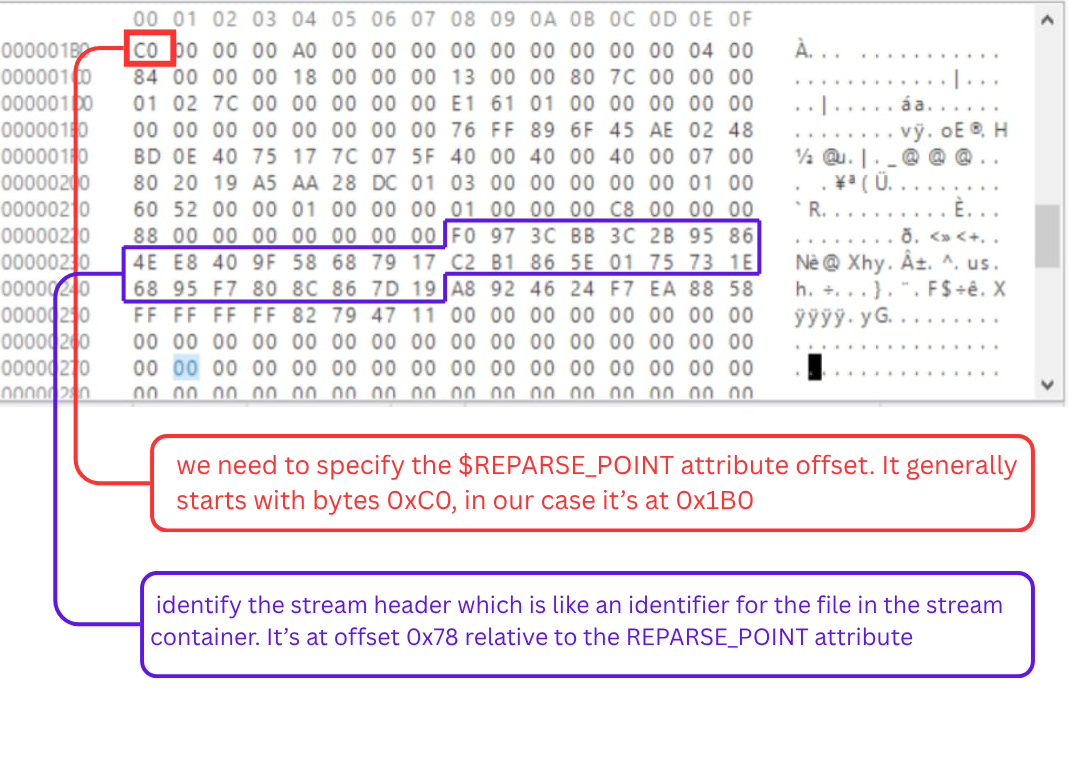
Now we can extract the Stream Header Identifier from the $REPARSE_POINT.
F0 97 3C BB 3C 2B 95 86 4E E8 40 9F 58 68 79 17 C2 B1 86 5E 01 75 73 1E 68 95 F7 80 8C 86 7D 19
Note: The length and format of the Stream Header Identifier may vary between different versions of Windows Data Deduplication.
Each deduplicated file has a corresponding CKHR structure within its Stream File. In our case, the Stream File is located at:
System Volume Information\Dedup\ChunkStore\
{6F89FF76-AE45-4802-BD0E-4075177C075F}.ddp\
Stream\
00010000.00000001.ccc
Now, let’s reverse engineer the Stream File to understand its structure and how Windows maps a deduplicated file to its chunks.
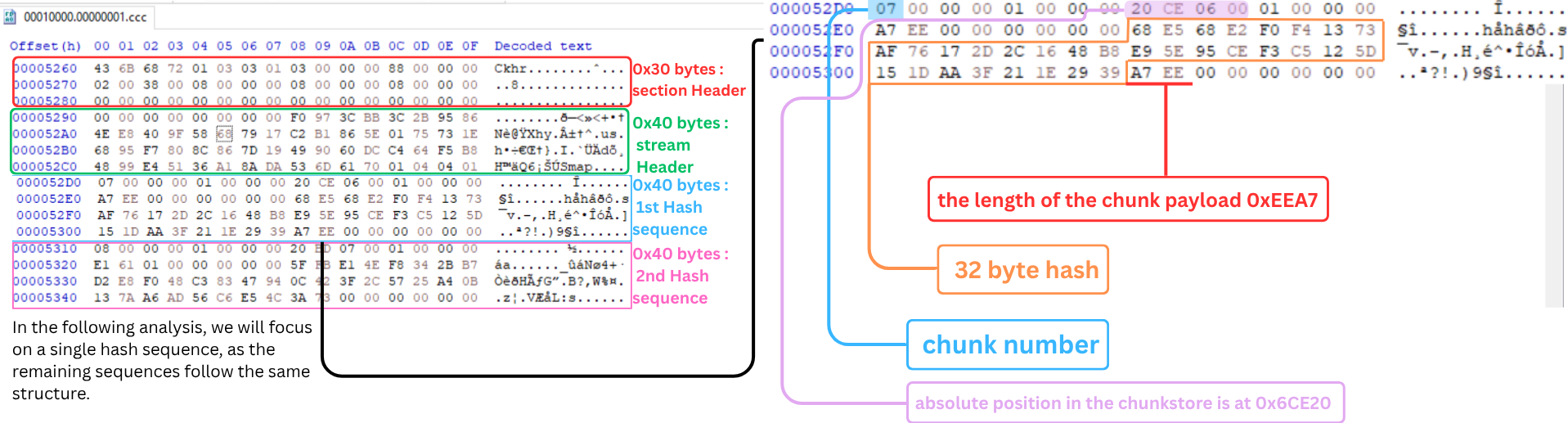
At offset 0x70 starts the first hash sequence where at 0x78 there is the absolute position in the chunkstore is at 0x6CE20 and at offset 0x88 the 32 byte hash, The value at offset 0xA8 is the length of the chunk payload 0xEEA7.
the second the second hash section is at offset B0 where the the absolute position in the chunkstore is at 0x7BD20 and chuck payload length is 0x733A.
Now we can move to the Chunk Store located at:
System Volume Information\Dedup\ChunkStore\
{6F89FF76-AE45-4802-BD0E-4075177C075F}.ddp\
Data\
00000001.00000001.ccc
This is where the actual chunk data is physically stored. Unlike the Stream File, which only contains metadata and chunk references, the Chunk File stores the compressed data blocks that make up the original file.
Now, let’s reverse engineer the Chunk File to understand its internal structure and how Windows stores the physical chunk data used to reconstruct a deduplicated file.
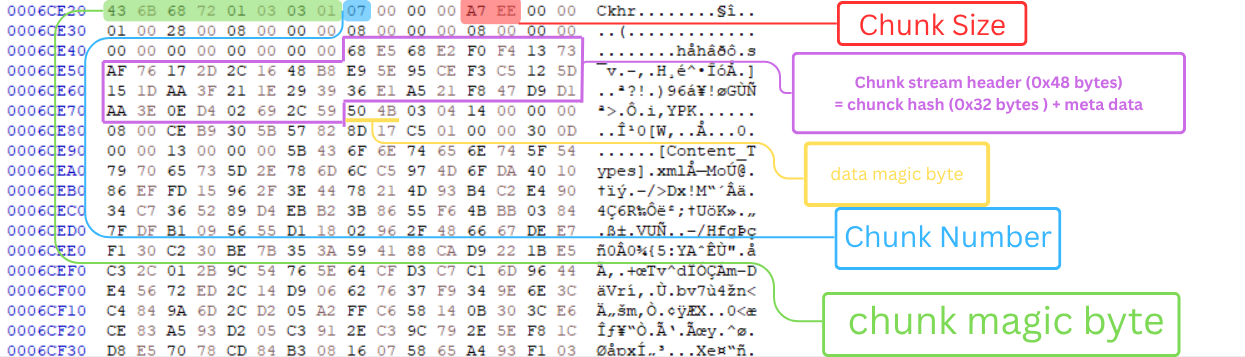
At this point, we have collected all the information required to reconstruct the original file. We have identified the $REPARSE_POINT, extracted the Stream Header Identifier, parsed the Stream File to obtain the chunk references, and located the corresponding chunks within the Chunk Store. We can now extract the required chunks and reassemble them to recover the original file.
First Chunk
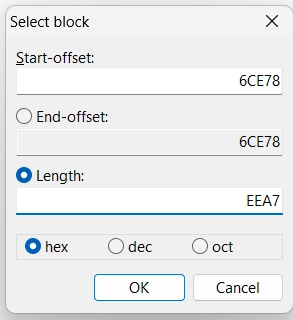
second chunk
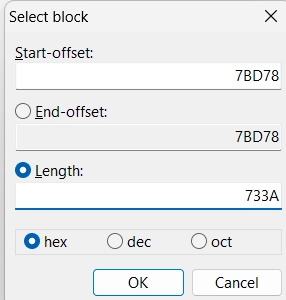
concatenating them together resulting in the actual file.
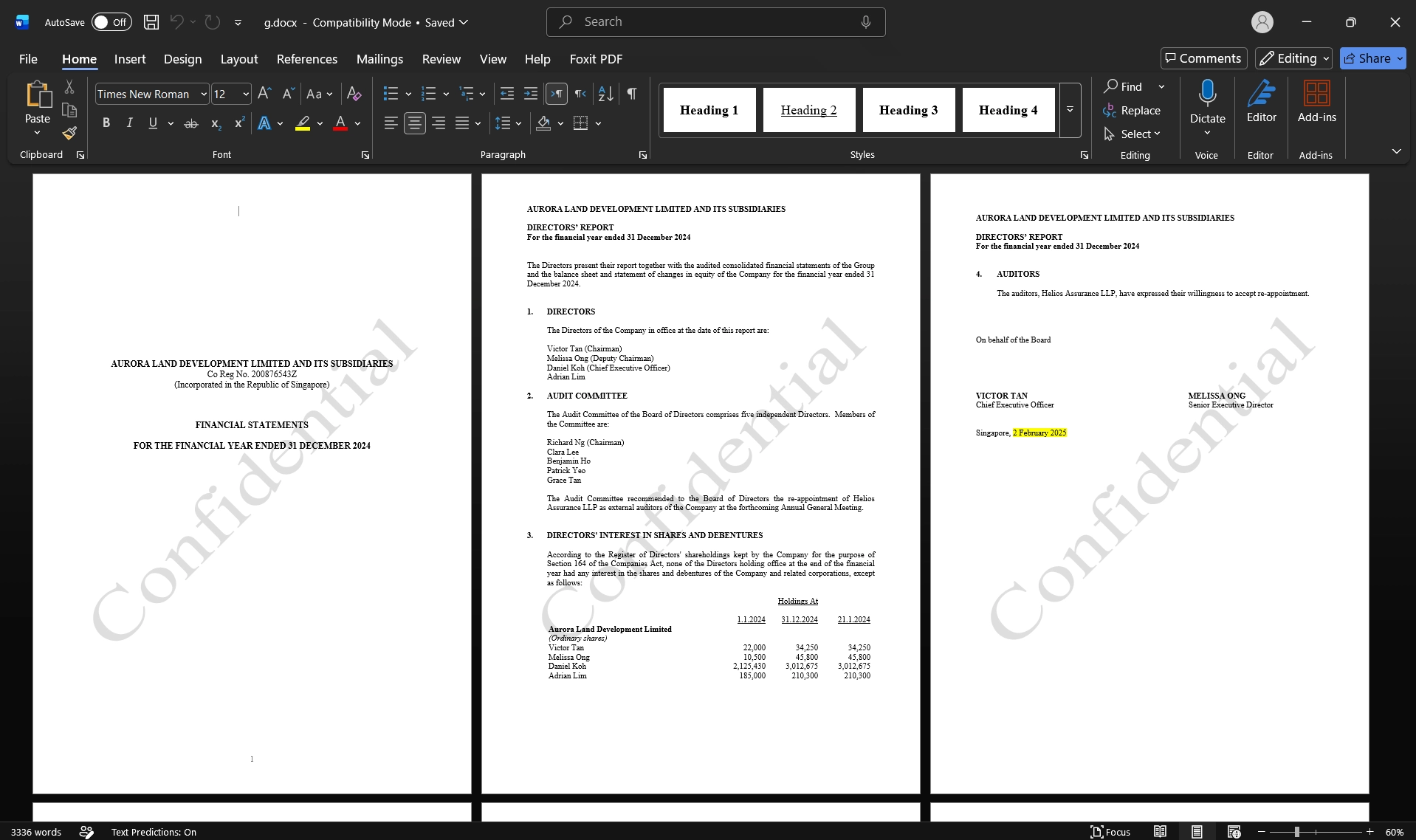
After understanding each component and the recovery process, we can now automate the entire workflow by building an offline recovery tool.
https://github.com/7h3kn0w3r/DedupInspector
// System Footprint Comments